
From the Mapping page, you can create and map the search fields used in AAHC with the corresponding fields in the Logpoint server.
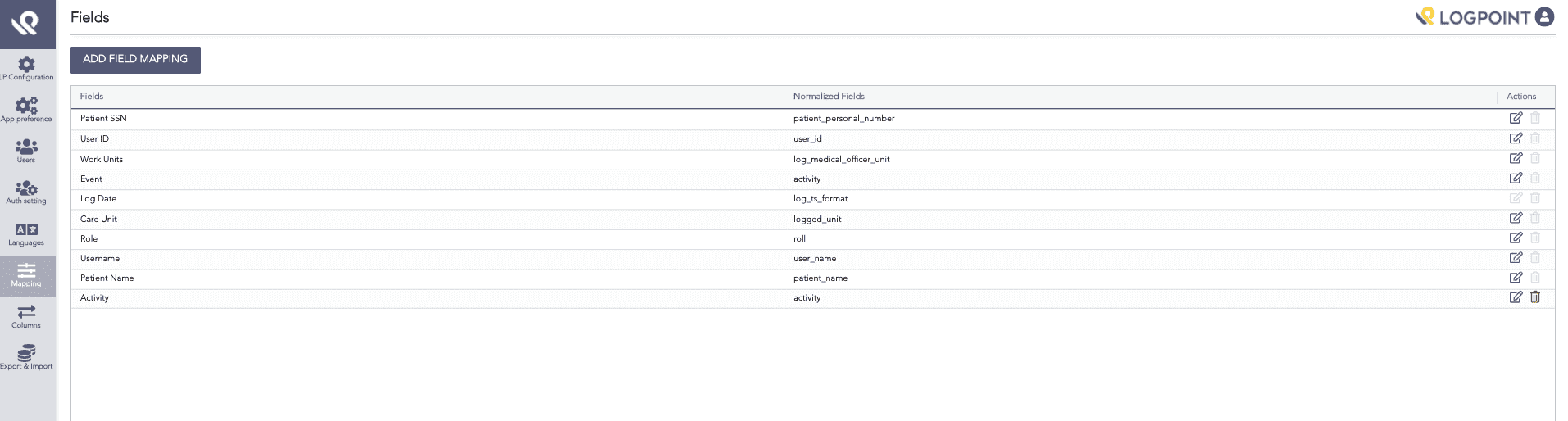
Mapping Page
Select Mapping from the left navigation bar.
For all the default search Fields, AAHC sets default Normalized Fields.
Click the Edit icon from the Actions column.
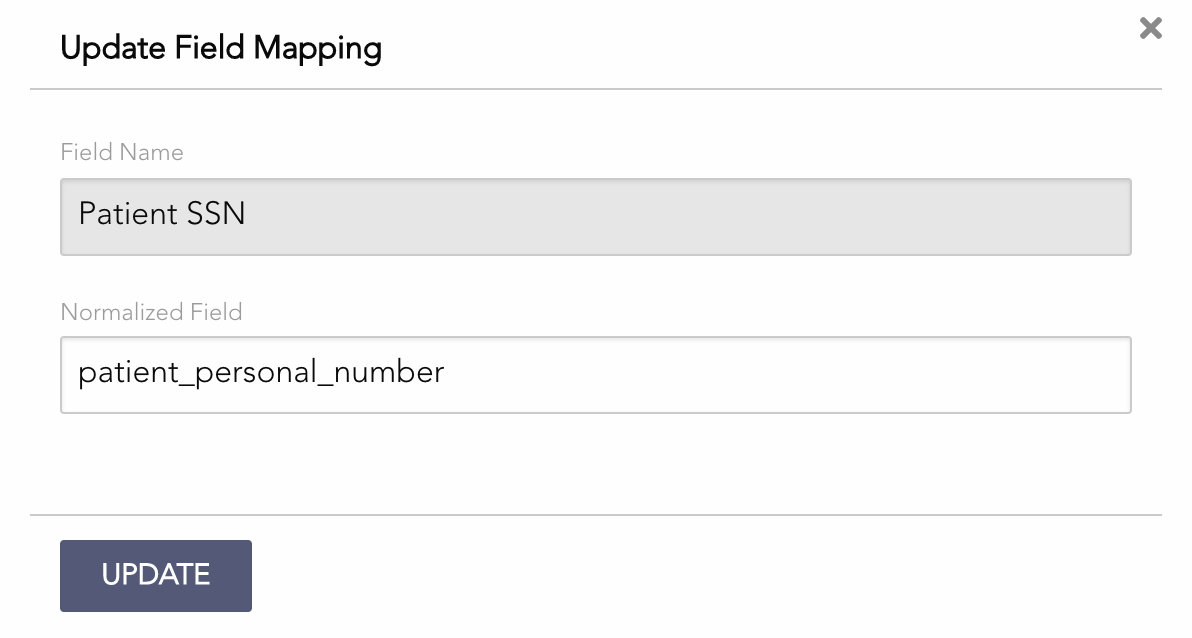
Updating the Field Mapping
Enter the Field Name’s corresponding Normalized Field in Logpoint.
Note
You cannot edit a default Field Name.
Click Update.
Select Mapping from the left navigation bar.
Click Add Field Mapping.
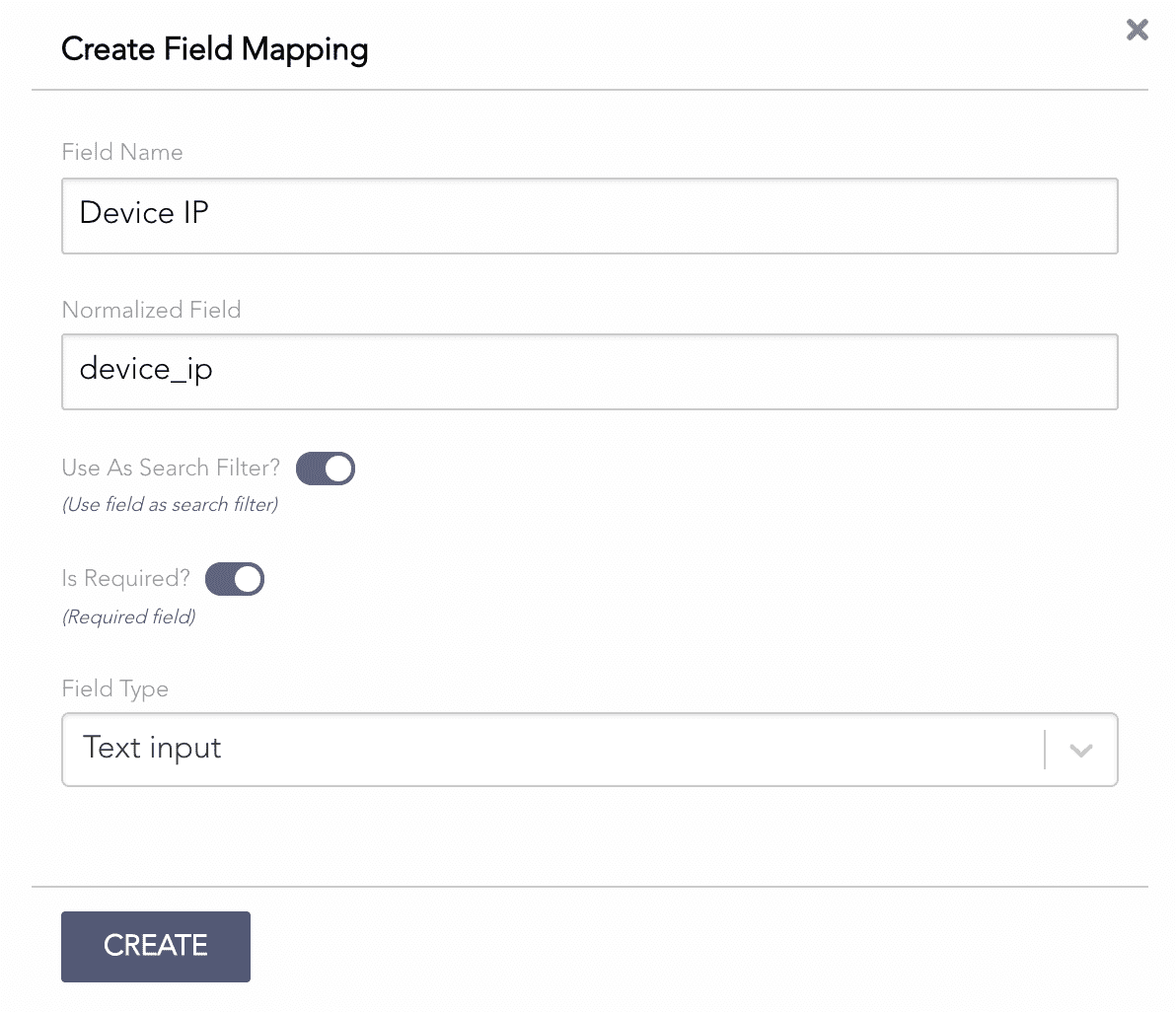
Creating a Map
Enter a Field Name. AAHC displays the Field Name as a column.
Enter the corresponding Normalized Field in Logpoint.
Select the Use As Search Filter? option to use the field as a search parameter.
5.1. Select the Is Required? option to make the search field mandatory.
5.2. Select the Field Type for the search field. AAHC provides the following field types:
Text input
Number input
Date input
Select
The Select type allows you to create a drop-down with custom field options. You must enter the Field Options separated by a semicolon (;).
Click Create.
You can use the custom field while creating a column template.
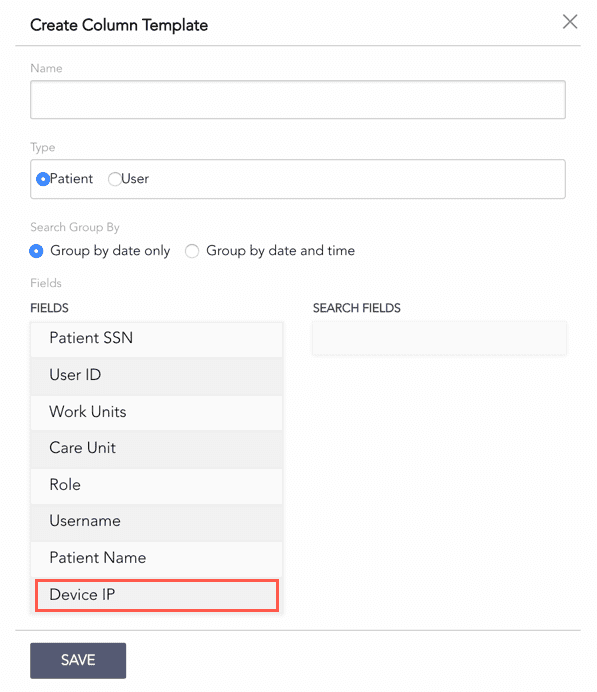
Column Template
You can either delete or edit a custom map. Before deleting, make sure the map is not used in any column templates. You cannot delete a default map.